8 hours agoAuthor: Samira Siddiqui
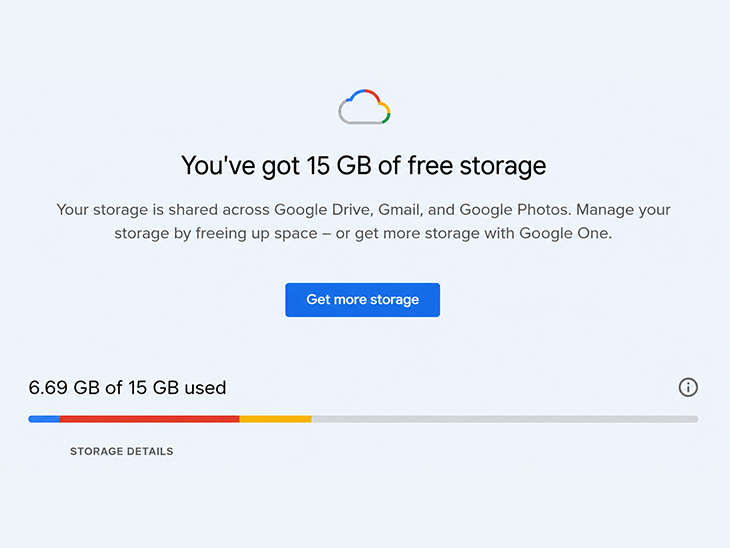
Have you recently received an email from Google about a 45-day storage update? If you ignored it thinking it was just another routine notification, kindly take a second look.
Google is changing the way it stores Android backups, and the update could affect millions of users. Soon, your phone’s backup, including messages, call history, app data, and device settings, will count toward the same 15GB of free storage that you already use for Gmail, Google Drive, and Google Photos.
For many people, the change won’t make a huge difference. But if your Google account is already close to its storage limit, you could soon run out of space and automatic backups may stop working.
Here’s everything you need to know.
What is Google Changing?
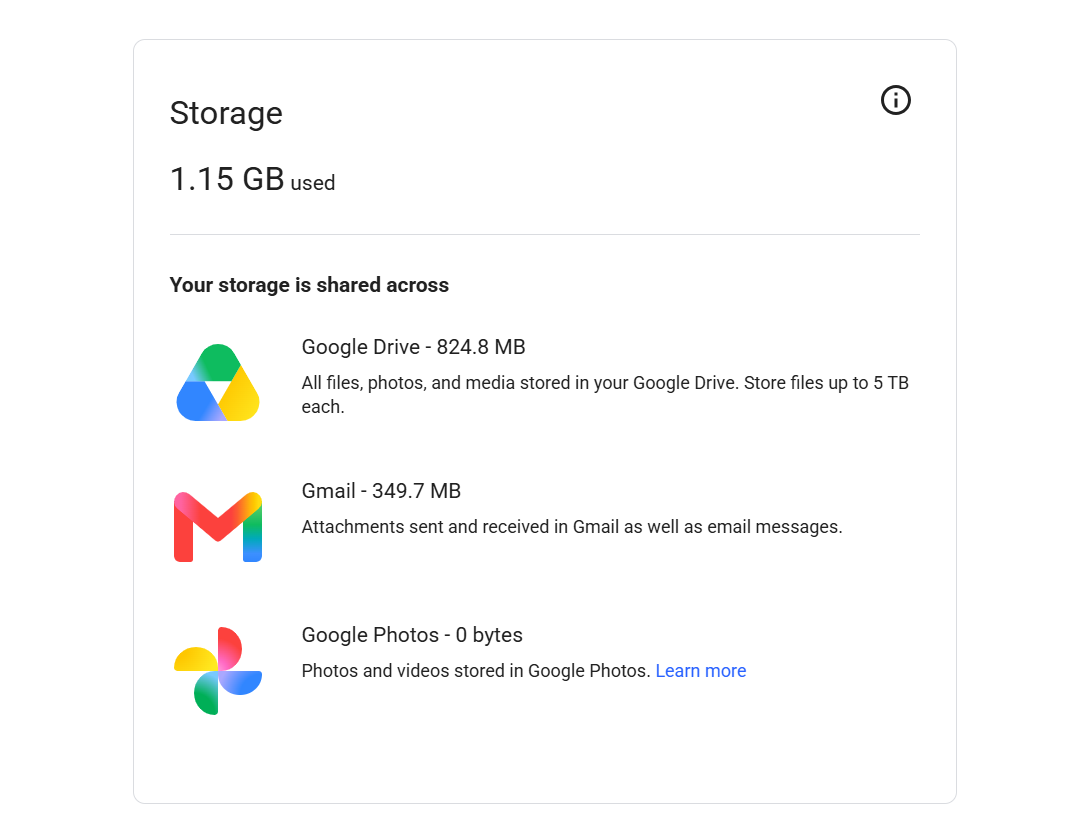
Android backups to share space with Gmail, Drive and Photos.
Until now, some Android backup data did not fully count against your Google Account storage. That is about to change.
After the 45-day notice period, Android backups will become part of the same 15GB storage pool shared by:
- Gmail
- Google Drive
- Google Photos
- Android device backups
This means your backup files, including SMS messages, call history, device settings, app preferences, and other backup data—will now use part of your available cloud storage.
Will it affect everyone?
Not necessarily. Google says the average Android backup will only add around 40MB to a user’s storage. For people with plenty of free space, the impact is likely to be minimal.
However, users who are already close to the 15GB free limit could face problems. Once the storage is full, Android may stop creating automatic backups unless you free up space or buy additional cloud storage.
Also read: SEBI warns of ‘Boss Scam’ that could cost you money:Fraudsters using fake WhatsApp messages to trick employees into transferring company funds Google is also giving you more control
Along with the new storage policy, Google is introducing more detailed backup settings.
You can now choose what you want to include in your Android backup, such as:
- SMS and MMS messages
- Call history
- Device settings
- Other backup data
These options can be found in the Google Backup section of your Android phone’s Settings, allowing you to manage what gets stored in the cloud.
How to check your Google Storage
Before deleting anything, it’s a good idea to see what is using the most space. Usually, the biggest storage users are:
- Google Photos, especially videos and duplicate images
- Google Drive files, including old documents and ZIP folders
- Gmail emails with large attachments
You should also check if your account still stores backups from older Android phones that you no longer use.
How to free up space
If you’re running low on storage, here are a few simple ways to make room:
- Delete unwanted photos and videos from Google Photos.
- Remove old files and folders from Google Drive.
- Delete emails with large attachments in Gmail.
- Empty the Gmail Trash and Spam folders, as they still use storage.
- Delete backups of Android devices you no longer use.
- Limit automatic backups of unnecessary photos, videos, or media files.
These steps can help you continue using Google’s free storage without immediately upgrading your plan.
Google’s new policy doesn’t reduce your free storage; it simply changes what counts toward it. Once the 45-day transition period ends, Android backups will be included alongside Gmail, Google Drive, and Google Photos in your 15GB storage limit.